
Bubble
Works on: Android
The Dictation Bubble is a floating button that stays on top of other apps. Tap it to dictate in any app on your phone without opening Letterly.
On the Free plan: 20 dictations, each up to 1 minute.
Learn more about plans →Before you start, add the Bubble to your device — see Set up Dictation.
The Bubble works in most apps with a text field, including Messages, Gmail, WhatsApp, Notes, and ChatGPT.
Dictate with the Bubble
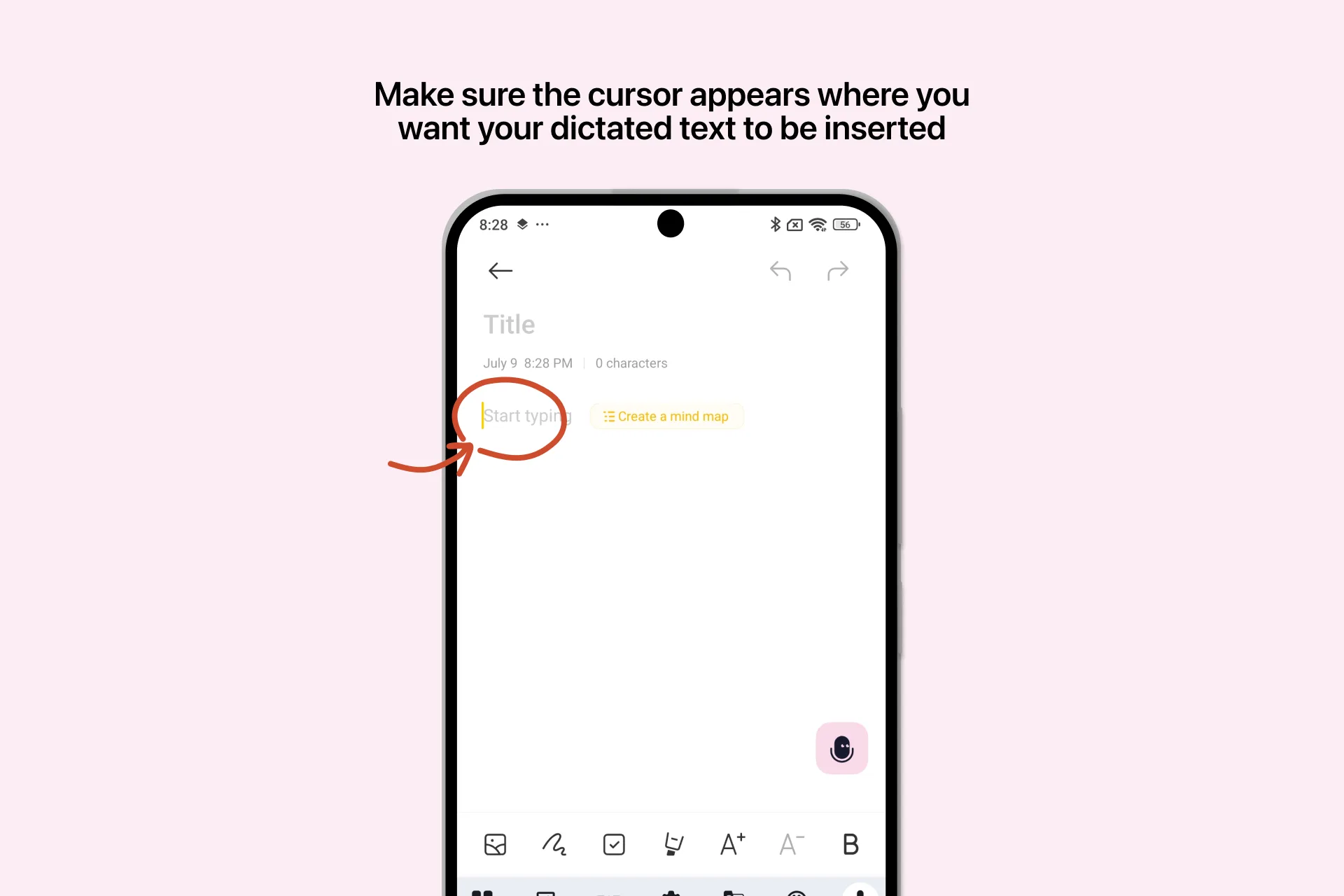
- Open the app you want to write in and tap a text field to place the cursor.
- Tap the Dictation Bubble. Recording starts immediately.
- Say what you want to write.
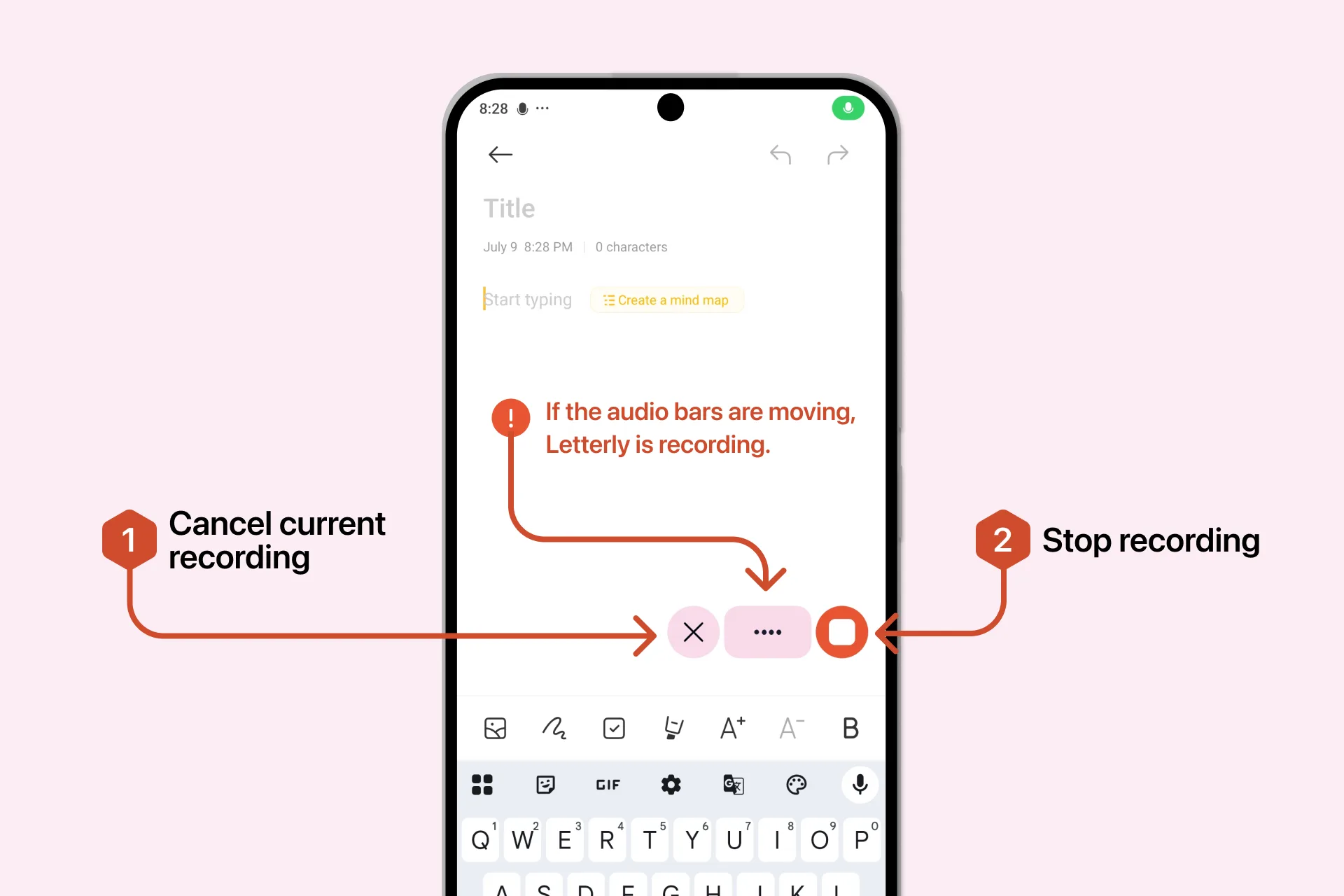
- Tap the Stop button. Letterly processes your speech and inserts the text at the cursor.
| Control | What it does |
|---|---|
| X | Discards the current recording |
| Stop (red button) | Ends the recording and inserts the text |
Keep the app and the text field open while Letterly processes your dictation. If the field closes, the text cannot be inserted.
If the audio bars are moving, Letterly is recording. If they stay still while you speak, check that Letterly has permission to use the microphone.
Move the Bubble
Press and hold the Bubble and drag it to any position on the screen.
Snooze the Bubble
To hide the Bubble temporarily, drag it to the Snooze area at the bottom of the screen. The Bubble disappears for 10 minutes and then returns automatically.
To bring it back sooner, unlock your phone and shake it.
If the text was not inserted
Letterly saves every completed dictation. If you started dictating without placing the cursor in a text field, open Settings → History to find and copy the text.