
Keyboard
Works on: iPhone
The Letterly Keyboard lets you dictate and rewrite text in any app. Add it to your device first — see Set up Dictation.
On the Free plan: 20 dictations, each up to 1 minute, and 10 rewrites in total. The keyboard shows how many you have left.
Learn more about plans →Dictate with the keyboard
- Tap any text field, then use the globe icon to switch to the Letterly Keyboard.
- Tap the microphone button. Recording starts immediately.
- Say what you want to write.
- Tap the Stop button. Letterly inserts the finished text at the cursor.
When you start dictation from another app, iOS opens Letterly briefly and returns you to the app you were typing in. iOS requires this switch for Dictation to work — see Dictation switches to Letterly.
While you record, you see these controls:
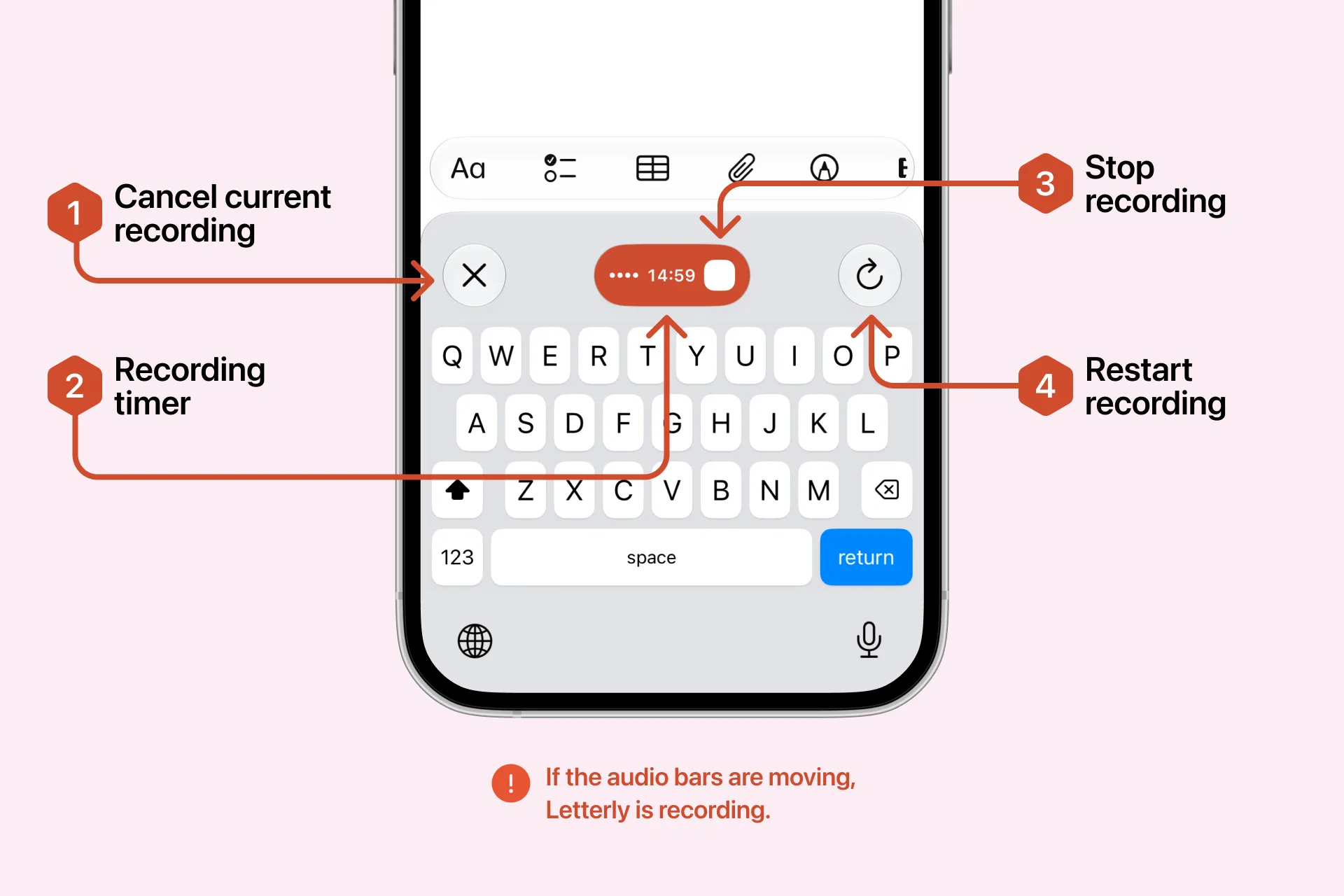
| Control | What it does |
|---|---|
| X | Discards the current recording |
| Timer | Shows how much time you have left |
| Stop (red button) | Ends the recording and inserts the text into the active field |
| Restart | Discards the recording and starts again |
A single dictation can be up to 15 minutes. Need longer? Record a note in the app instead — up to 90 minutes.
Rewrite text
Right after Letterly inserts your text — or when you select existing text — a Rewrite button appears in the keyboard. Tap it to reshape the text into Magic, List, Structured, Journal Entry and more. Full details in Dictation output.
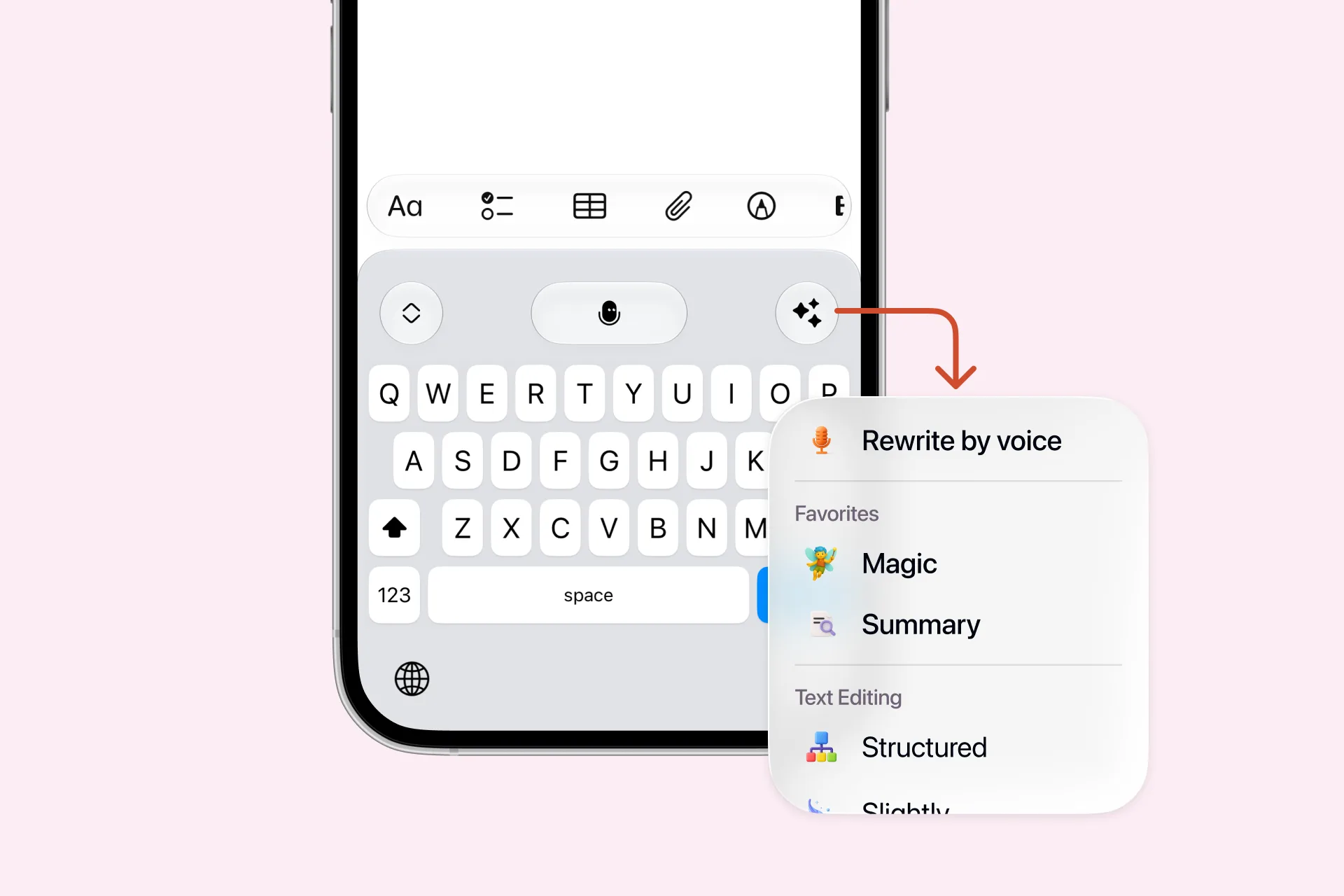
Keyboard menu
Tap the menu button on the left of the keyboard.
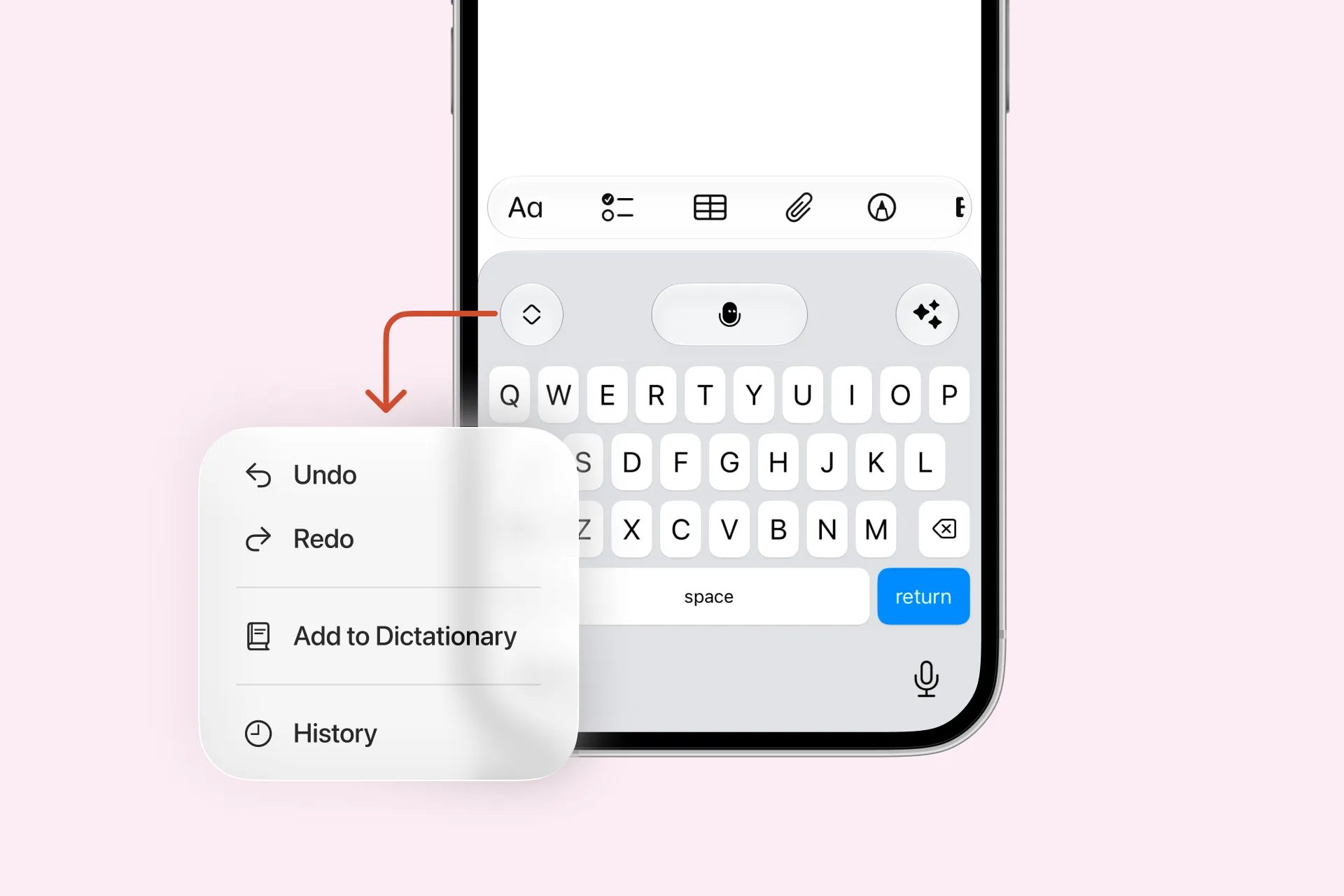
| Action | What it does |
|---|---|
| Undo | Removes the text Letterly inserted, or reverts a voice rewrite |
| Redo | Restores what Undo removed |
| Add to Dictionary | Saves a word so Letterly spells it correctly next time. See Dictionary |
| History | Opens your dictation History in Letterly |
Turn Dictation off
Open the Letterly Home screen and tap the power icon next to Dictation to turn it off and disable keyboard access. You can also tap the power icon in the Letterly widget on the Lock Screen, without unlocking your iPhone.