
Dictation output
Rewrite text from the keyboard
The Rewrite button appears in the Letterly Keyboard when Letterly has just inserted your dictated text, or when you select existing text.
Tap Rewrite to choose an option such as Magic, List, Structured, or Journal Entry.
Choose a rewrite option
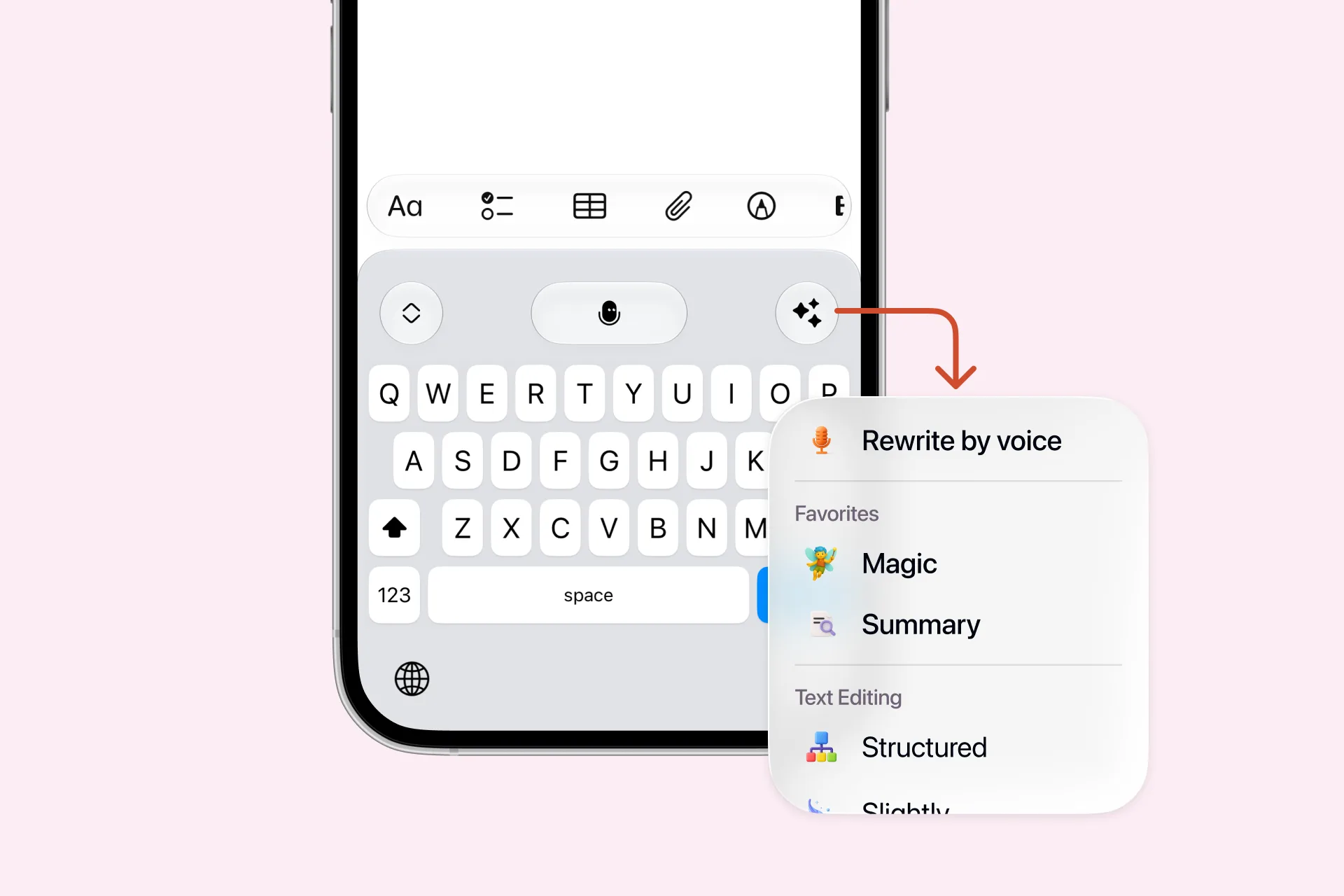
| Section | What it contains |
|---|---|
| Rewrite by voice | Say how you want the text changed |
| Custom prompts | Rewrite options you created yourself |
| General options | Ready-made rewrite options from Letterly |
Your favourite rewrite options appear at the top of the menu. Choose which ones are shown there in the Letterly app — see Favorite rewrite options.
Rewrite by voice
Instead of choosing a ready-made option, describe what you want done with the text. Any request works, for example:
- make it shorter
- translate to English
- make the tone friendlier
- turn this into bullet points
There are two ways to use it:
| What you select | What Letterly rewrites |
|---|---|
| A fragment of text | The selected fragment |
| Nothing | Your last dictated phrase |
To undo the result, tap Undo in the keyboard menu.
If the Rewrite button disappears
The Rewrite button disappears after you change the text, for example by typing something new or editing a word. To rewrite the text again, select it first.
Letterly does not only transcribe what you said. When you finish dictating, it cleans up or rewrites your text automatically.
There are two types of rewrite options:
| Type | When it applies |
|---|---|
| Main rewrite option | Automatically, after every dictation |
| Pinned rewrite options | When you choose one from the floating bar |
Main rewrite option
Your Main rewrite option is applied every time you stop dictating.
By default, Letterly uses the System rewrite option, created specifically for Dictation. It keeps the text close to what you said, while removing filler words, adding punctuation, and making the text easier to read.
You can choose any rewrite option as your main one, including Structured, List, Short Summary, and Journal Entry.
The Main rewrite option cannot be turned off. To get your dictated text without any changes, choose Raw Transcript.
Change the Main rewrite option
Open Settings → Dictation → Floating Bar → Dictation Output, then choose your Main rewrite option.
Pinned rewrite options
Pinned rewrite options appear below the recording controls on the floating bar. Use them to change the format of your dictation right after you finish. Each option has a keyboard shortcut next to it.
Change pinned rewrite options
Open Settings → Dictation → Floating Bar → Dictation Output, then click the pin icon next to each option you want to keep on the floating bar.
Pinned options are optional. You can remove all of them.
Letterly does not only transcribe what you said. When you finish dictating, it cleans up or rewrites your text automatically.
There are two types of rewrite options:
| Type | When it applies |
|---|---|
| Main rewrite option | Automatically, after every dictation |
| Pinned rewrite options | When you choose one from the floating bar |
Main rewrite option
By default Letterly uses System. It keeps the text close to what you said, while removing filler words, adding punctuation, and making the text easier to read.
You can choose any rewrite option as your main one, including Structured, List, Short Summary, and Journal Entry.
To get your dictated text without any changes, choose Raw Transcript.
Change the Main rewrite option
Open Settings → Dictation → Floating bar → Dictation output, then choose your Main rewrite option.
Pinned rewrite options
Pinned options appear below the recording controls on the floating bar, so you can reshape a dictation right after you finish it. Each one has a keyboard shortcut next to it.
To choose them, open Settings → Dictation → Floating bar → Pinned rewrite options, then click the pin icon next to each option you want.